


Google Play services
4.3727.17K Reviews
App Specs
- Version
- Varies with Device
- Updated On
- License
- Free
- Downloads
- 10,000,000,000+
- Developer
- Google LLC
- Categories
- Tools
- Platform
- Android, iOS
Screenshots


 Analysis by AppCompare
Let’s dive into the world of Google Play services, a bit of a behind-the-scenes magician on your Android device. You might not always notice it, but trust me, it’s doing some heavy lifting to make sure your apps run smoothly. So, what’s the deal with this app that’s not really an app? Let’s break it down.
What Exactly is Google Play Services?
Okay, so first things first. Google Play services isn’t your typical app that you’d open and play around with. Instead, it’s like the secret sauce that keeps your Android phone ticking along nicely. It’s responsible for keeping your apps up-to-date and ensuring they’re running as they should. Think of it as the glue holding your apps together with all of Google’s magical goodness.
Without getting too techy, Google Play services provides core functionality like authentication to your Google services, synchronized contacts, access to the latest user privacy settings, and higher-quality, lower-powered location-based services. It’s also what allows Google Play to communicate with the apps on your device.
Guides and Analysis on Google Play services
Why It’s Essential
Now, you might be wondering, “Why do I need this thing taking up space on my phone?” Well, here’s the scoop. Google Play services is crucial because it ensures that all the apps you download from the Google Play Store function properly. It gives developers access to Google’s APIs, which means they can create apps that are more integrated and functional. This is where it gets really handy—providing things like Google Maps in other apps, for instance.
If you’ve ever wondered why your apps stay so seamlessly connected and run so smoothly, it’s because of this little helper. It’s like the unsung hero of your phone, always working in the background.
How It Impacts Your Device
So, what’s the impact on your device? Well, it’s a bit of a mixed bag. On the one hand, Google Play services helps keep your apps running efficiently. On the other, it can sometimes gobble up some battery life and storage space. But let’s be honest, the trade-off is usually worth it for the seamless experience it provides.
From managing system settings to enhancing gaming experiences with Google Play Games, it’s all about improving user experience. You’re probably benefiting from it even if you didn’t realize it was there!
Worth Reading Before You Choose

Baby Panda World Brings Quick Play to Modern Phones, but Its Game Library Feels Busy

ESPN’s Live Game View Makes Following Close Games Easier

QuizzLand Review: A Good Fit for Short Trivia Breaks, Not Every Player

Basketball Stars: Multiplayer Is Fast, but Can It Recover When Matches Go Wrong?

WEBTOON Turns Phone Updates Into a Better Reading Routine

Link to Windows Runs on Shared Habits, Not Social Feeds
Staying Up-to-Date
Here’s a little nugget of wisdom—keeping Google Play services updated is vital. Updates often contain important improvements and bug fixes that can enhance the performance of your apps and your phone overall. It’s usually updated automatically, but you can always check the version in your settings if you’re curious.
To manually check for updates, head over to the Google Play Store and search for Google Play services. If there’s an update available, you’ll see an option to update. Simple as that!
Final Thoughts
So, there you have it. Google Play services might not be the flashiest thing on your phone, but it’s definitely one of the most important. It’s all about enhancing your Android experience, and honestly, where would we be without it? It’s a little bit like having a personal assistant who makes sure everything is running smoothly without needing constant attention.
Next time you’re wondering what’s keeping all your apps in harmony, you’ll know it’s Google Play services, working its magic in the background. Give it a little nod of appreciation—it deserves it!
Pros
- Seamless integration with Android apps.
- Frequent updates for improved stability.
- Enhances app performance and functionality.
- Supports location-based services efficiently.
- Enables easy backups and data syncing.
Cons
- Consumes significant battery power.
- Requires constant internet connection.
- Can cause storage bloat over time.
- Potential issues with older devices.
- Updates occasionally cause app crashes.
FAQs for Google Play services
What is Google Play services and why do I need it?
Google Play services is a background service and API package provided by Google. It enhances app experiences by enabling core functionalities like authentication, location services, and push notifications. It's essential for running many apps smoothly, as it provides critical support for app performance and security updates.
Does Google Play services consume a lot of battery?
Google Play services can occasionally use battery power, especially if it is actively updating apps or performing background tasks. However, it is optimized to minimize battery usage. If you notice excessive battery drain, ensuring the app is updated to the latest version can help alleviate this issue.
How do I update Google Play services?
To update Google Play services, open the Google Play Store, search for 'Google Play services,' and tap 'Update' if available. Alternatively, navigate to Settings > Apps > Google Play services, and check for updates. Keeping it updated ensures optimal performance and security.
Can I uninstall or disable Google Play services?
Google Play services is a crucial component for Android devices, and uninstalling it may lead to app malfunctions. Although you can disable it, this is not recommended, as it could disrupt app functions and system services. It's best to keep it enabled and updated.
What should I do if Google Play services keeps stopping?
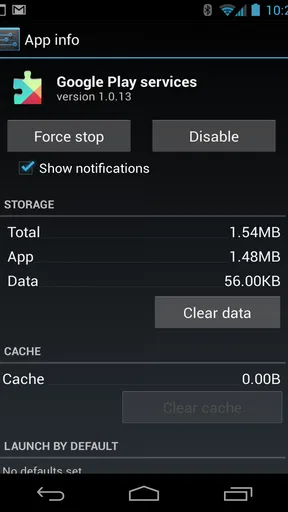
If Google Play services keeps stopping, try clearing its cache and data by going to Settings > Apps > Google Play services > Storage. Restart your device afterward. Ensure you have the latest version installed. If issues persist, check for system updates or contact support for further assistance.


